Display an Album of Photos on Your iPhone or iPad Lock Screen
Display an Album of Photos on Your iPhone or iPad Lock Screen If you like how the Lock Screen’s Photo Shuffle wallpaper rotates through photos but would prefer that it worked from an album you specified, you’re in luck! That’s now possible in iOS 17 and iPadOS 17.
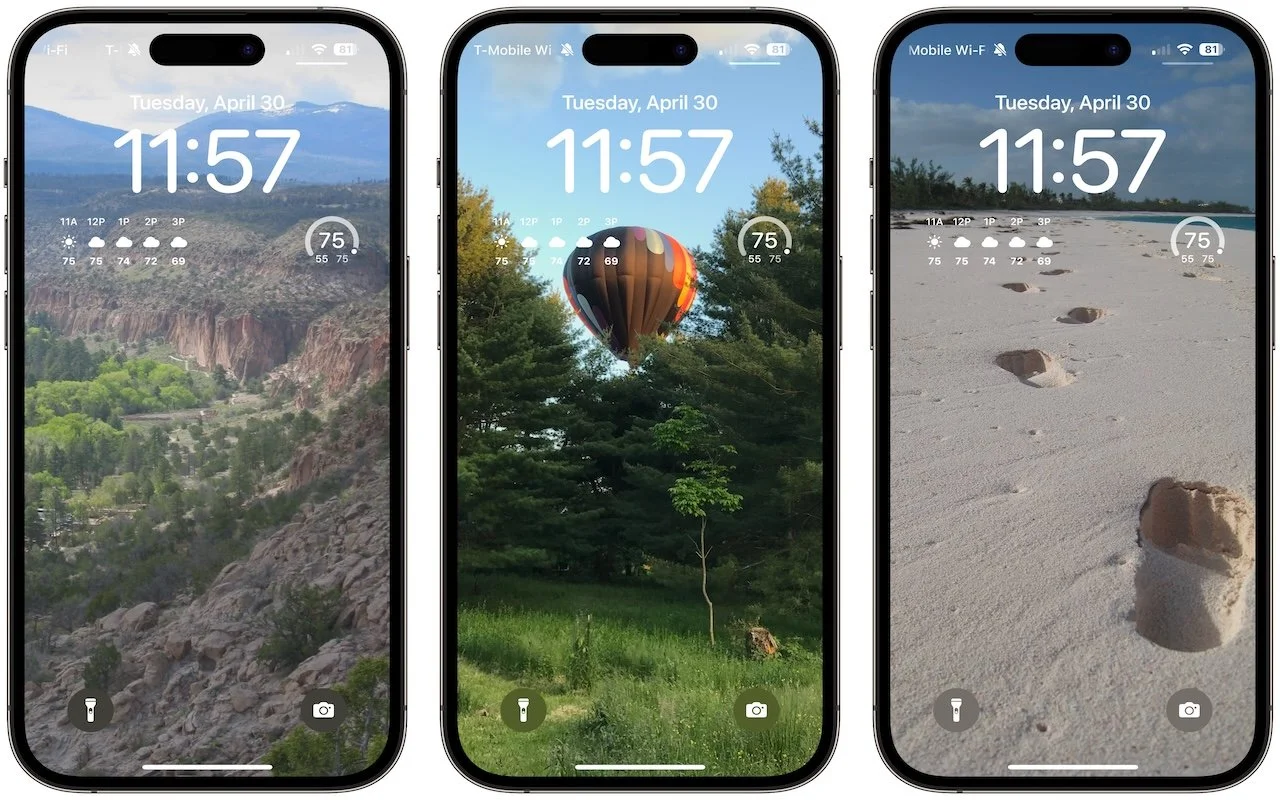
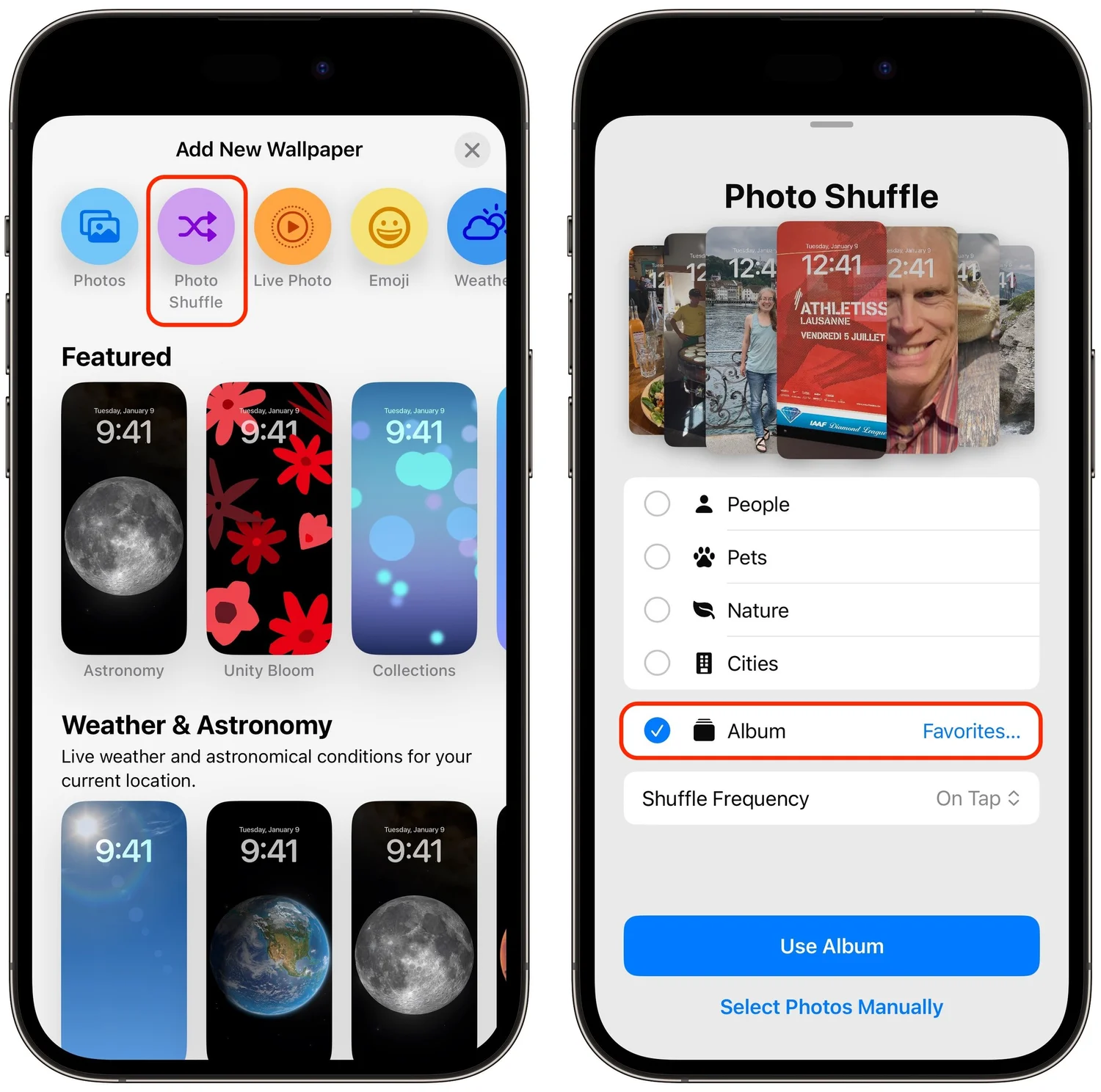
A popular feature of iOS 16 was the Photo Shuffle option for customizing the iPhone Lock Screen. It used machine learning to select photos in four categories—People, Pets, Nature, and Cities—and rotated through them when you tapped, on lock, hourly, or daily. If you didn’t like the automatic selection, you could pick photos manually, but it was clumsy. In iOS 17 (and iPadOS 17, which also added customizable Lock Screens), you can now point the Lock Screen’s Photo Shuffle wallpaper at an album. Touch and hold the Lock Screen, tap Customize, tap the blue ⨁ button to create a new wallpaper, select Photo Shuffle, select Album, choose the desired album from the pop-up menu, set a frequency, tap Use Album, and tap the Add button at the top. Then tap Set as Wallpaper Pair or Customize Home Screen to choose a different image for the Home Screen wallpaper.
(Featured image by Adam Engst)