Losing Messages or Calls? Look in the Unknown Senders/Callers Filter
Missing texts from unknown numbers? iOS 26 filters them into hidden lists. Here’s where to find them in the Messages app—and how to mark senders as known so you don’t miss important messages. PS: The same applies to calls in the Phone app.
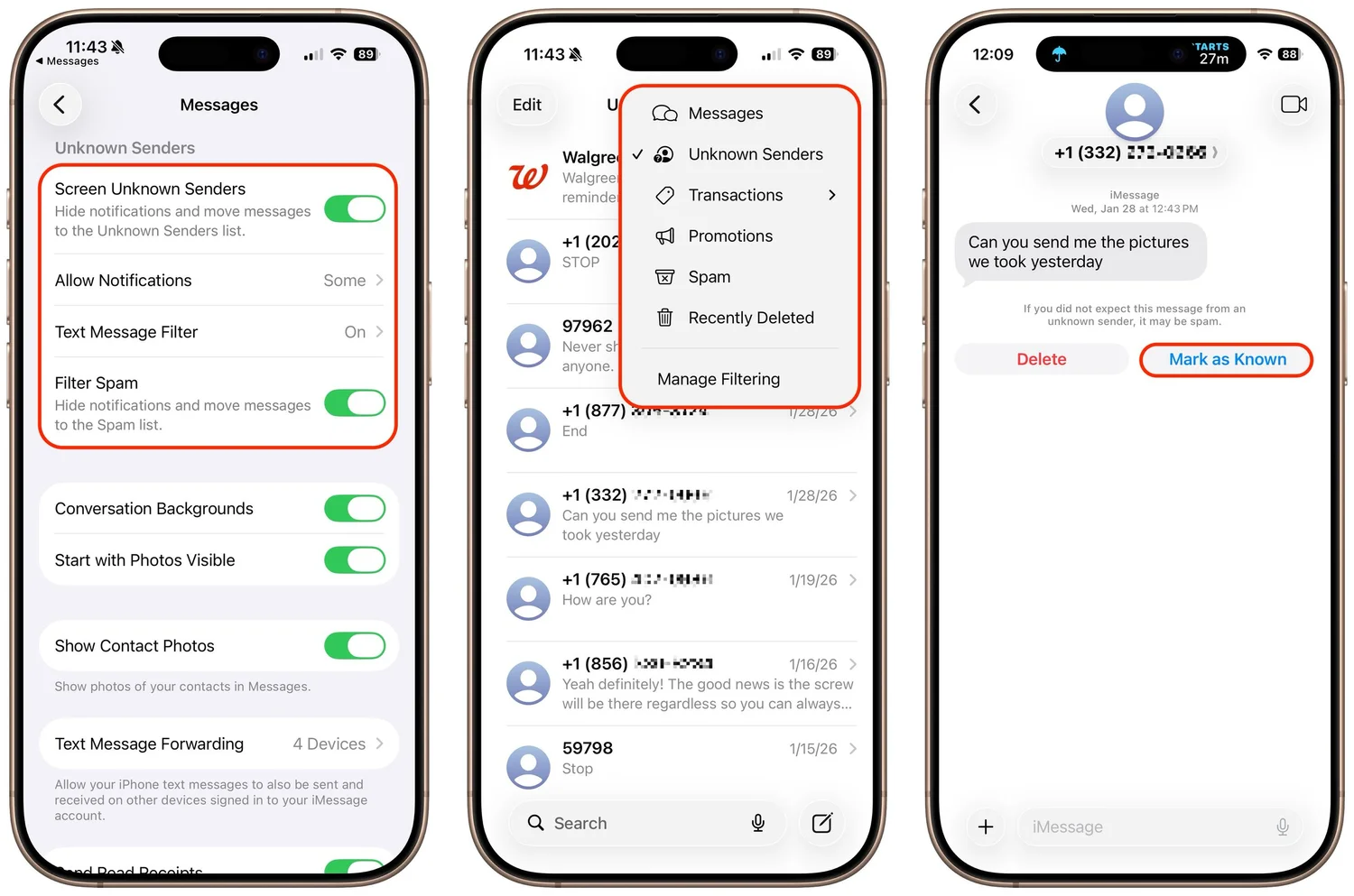
In iOS, iPadOS, and macOS 26, Apple added an option in the Messages app to filter messages from unknown people and those marked as spam by the carrier. To enable filtering, open Messages, tap the Filter button in the upper-right corner, tap Manage Filtering, and turn on Screen Unknown Senders and Filter Spam. Once those are enabled, the Filter menu gains two new options: Unknown Senders and Spam. If a text from an unknown person comes in, the main app icon will get a red badge, but you won’t see the new message in the usual list. Instead, use the Filter menu—which also gets a blue badge—to switch to Unknown Senders or Spam and look in those lists. The Phone app works similarly—enable call filtering in Settings > Apps > Phone under Call Filtering, and unknown callers will appear in separate lists accessible via the Filter button in the Phone app’s Recents or Calls views. To move a conversation out of Unknown Senders, tap Mark as Known.