
When It Comes to Wi-Fi Networks, Sometimes It’s Better to Forget
It’s easy, particularly when traveling, to end up connecting to a Wi-Fi network that doesn’t provide Internet access, requires credentials you don’t have, or lacks access to the network’s printer.…
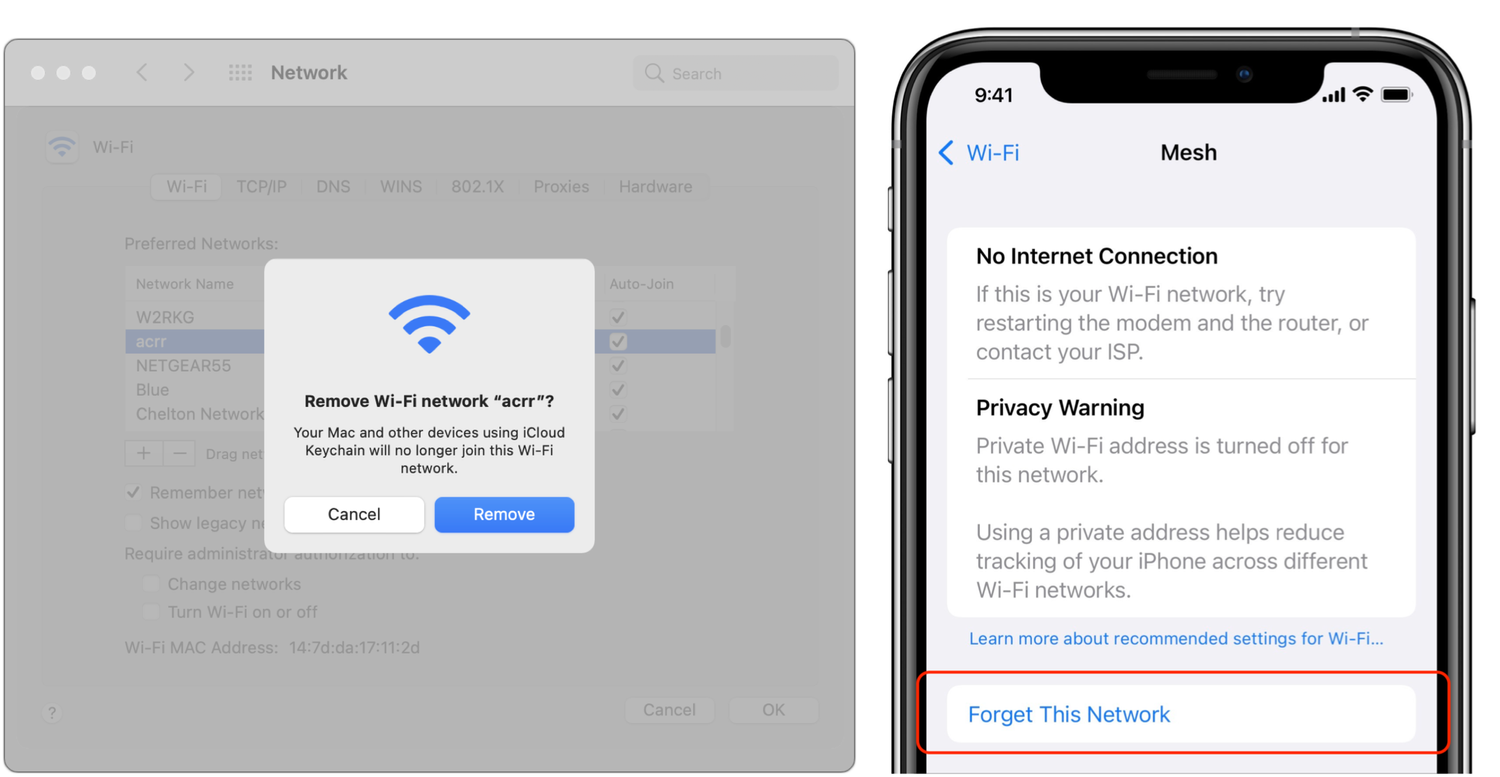
It’s easy, particularly when traveling, to end up connecting to a Wi-Fi network that doesn’t provide Internet access, requires credentials you don’t have, or lacks access to the network’s printer. Unfortunately, once your iPhone, iPad, or Mac has connected to such a network, it may reconnect to it later, causing consternation when things don’t work. The solution? Whenever you realize a Wi-Fi network is worthless, forget it. (The network, that is.) On the Mac, open System Preferences > Network > Wi-Fi > Advanced > Wi-Fi, select the network in the list (you don’t have to be connected to it), click the – button, and click Remove. On an iPhone or iPad, when you’re connected to the offending network, go to Settings > Wi-Fi, tap the i button to the right of the current network, and tap Forget This Network on the next screen.