Hidden Tricks for Navigating the Mac’s App Switcher More Quickly

Although the Mac’s Dock shows all your running apps, it’s often not the most efficient way to switch among them. Instead, turn to the App Switcher. You may know that pressing Command-Tab switches…

Person sitting in a chair tossing illustrated device icons representing a phone, laptop, monitors, and camera into the air

Although the Mac’s Dock shows all your running apps, it’s often not the most efficient way to switch among them. Instead, turn to the App Switcher. You may know that pressing Command-Tab switches to the last-used app, making it easy to flip back and forth between two apps. However, if you press Command-Tab and continue to hold the Command key down, the App Switcher itself appears, with icons for all running apps. When you let up on the Command key, the App Switcher disappears, and you’ll switch to the selected app. To select an app, while the Command key is down, press Tab or Shift-Tab to cycle through the apps, or hover your pointer over the desired app. You can also click the desired app to switch to it instantly, without letting up on the Command key. And if you want to dismiss the App Switcher without switching apps, press Esc.


macOS App Switcher showing nine app icons including Finder, Messages highlighted, Safari, Mail, Brave, Music, and Calendar

About Atlas Solutions

Atlas Solutions is an Apple Technical Partner and Jamf MSP in Davidson, NC. We manage and secure Mac, iPhone, and iPad for businesses in Charlotte, Lake Norman, and beyond. More about us

See all

Mac tips

Dealing With the MacBook Notch in macOS 27 Golden Gate

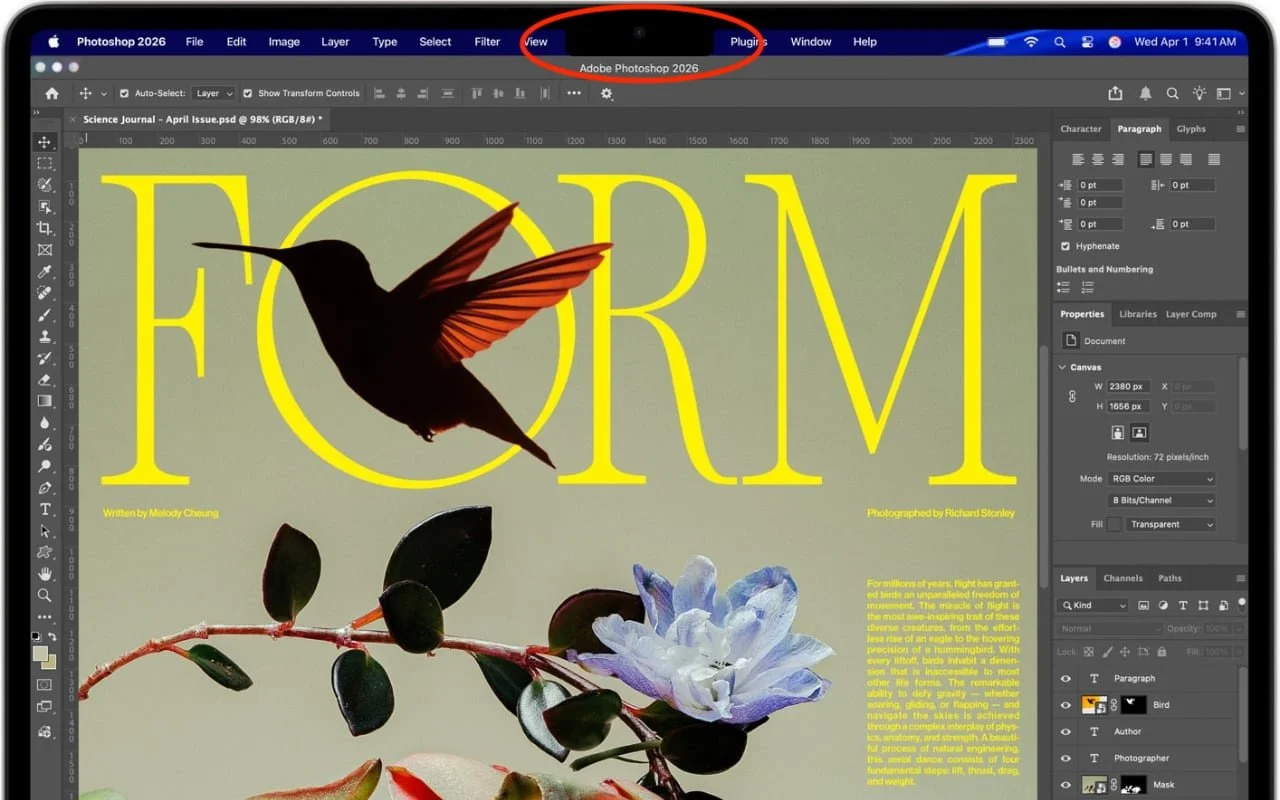
Menu bar icons hidden behind your MacBook’s notch? macOS 27 Golden Gate finally adds a built-in fix: arrows that reveal the missing items. It’s not a replacement for Bartender or Ice, but it solves the core problem.

1 min read

Mac tips

You Quit the App. Why Is It Still Running?

An app can keep working after you quit it. macOS 27 Golden Gate makes that background activity easier to spot, and gives you controls to stop it when it’s no longer useful.

1 min read

Have an IT question we haven't covered?

In a free 30-minute call, tell us about your devices and your team, and we'll outline the next step.