How to Merge Two Similar Folders in the Mac’s Finder
How to Merge Two Similar Folders in the Mac’s Finder If you want to merge two folders that contain some of the same data, a little-known Finder feature can do it for you.

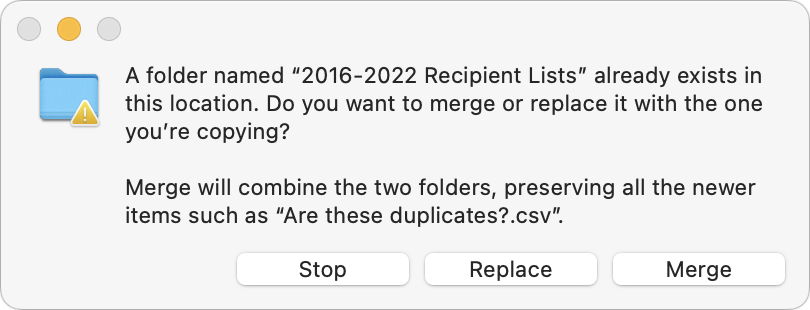
You’ve ended up with two folders whose contents—hundreds of files or more—are similar but not identical. Perhaps you’re recovering from a sync failure, or maybe you pulled an old version of the folder from a backup and aren’t sure what’s different. Regardless, here’s how you can merge them in the Finder. Make sure the folders are named identically and are in two different locations on your Mac. Press and hold the Option key, then drag the folder that contains more files to the location that contains the folder with fewer files. In the dialog that appears, click Merge to copy only newer files from the source and those not already in the destination. (It’s not a two-way sync; for that, you need an app like ChronoSync.) The Merge button appears only if the source folder contains files not in the destination; if the folders contain just different versions of identically named files, you’ll get only Stop and Replace buttons. For safety, always work on copies of your folders and check your work afterward to ensure the right things happened.
(Featured image by iStock.com/RerF)