Apple is continuing its forays into the financial world with the introduction of Apple Card Savings, a new savings account from Goldman Sachs that offers 4.15% interest with no fees, no minimum…
How Often Should Macs Be Replaced? When should you replace the Mac on your desk—or your organization’s Macs? There is no single answer, but we run down some variables that play into the deci-sion and make recommendations for different use cases.
The Mac’s Desktop is a remarkably useful place. It’s a good spot for in-progress documents, screenshots, images dragged out of Web pages, and more. However, app windows tend to obscure the Desktop,…
Many businesses, schools, and other organizations have adopted cloud storage services like Box, Dropbox, Google Drive, and Microsoft OneDrive for excellent reasons. Cloud storage provides a…
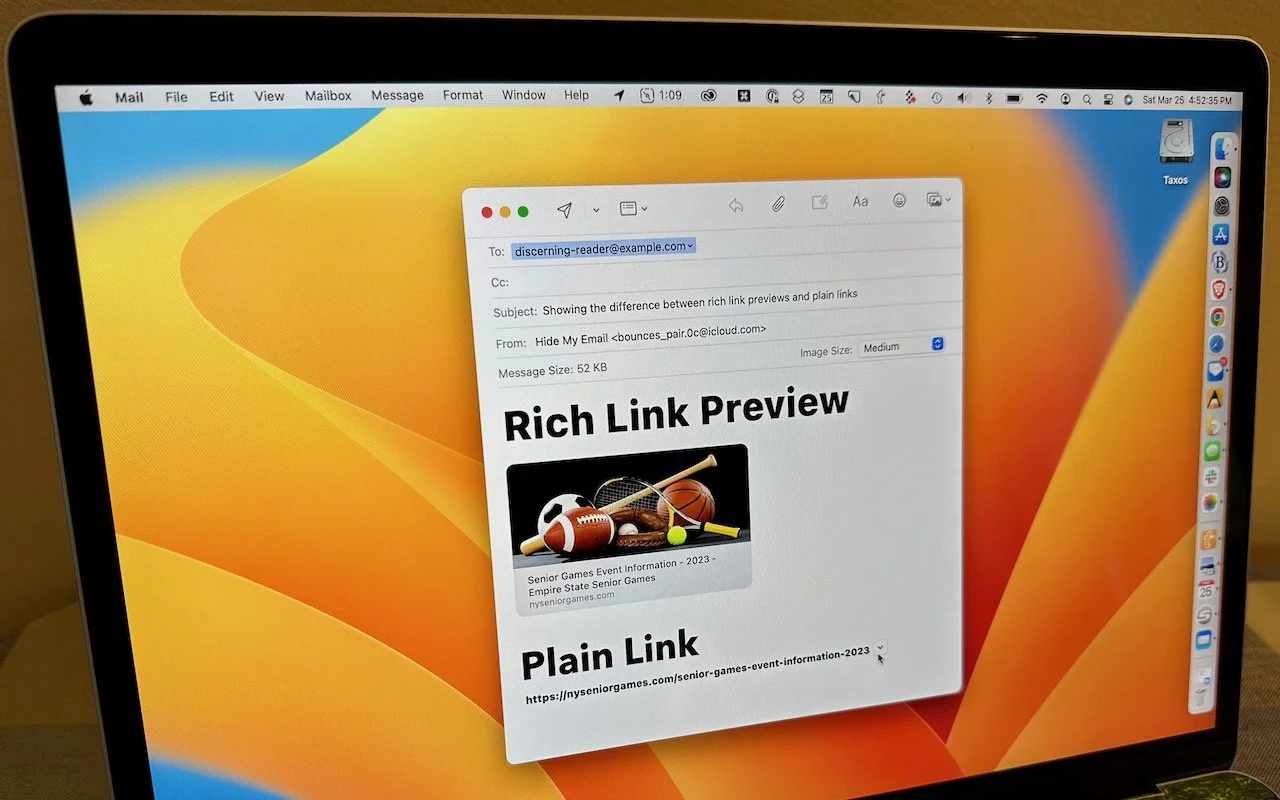
Sometimes apps can be too helpful. Apple’s Mail on the Mac likes to turn pasted URLs into graphically rich previews, and sometimes that’s OK. But other times, the preview is confusing or takes up…
Classical Music Fans Take Note: Apple Music Classical Is Now Available Apple has at long last released the promised Apple Music Classical app. It’s a free iPhone app for Apple Music subscribers that looks and works much like the standard Music app. However, Apple has adjusted it extensively under the hood to work better with classical music, where there are many recordings of the same work by different artists. Apple also improved the metadata—normalizing composer names and add-ing work and movement tags—for the 5 million classical tracks in Apple Music. For instance, you can search by work, composer, conductor, opus number, and key, something that worked poorly before. Apple Music Classical is a significant im-provement for classical music fans, and it provides expert recommendations and playlists for those interested
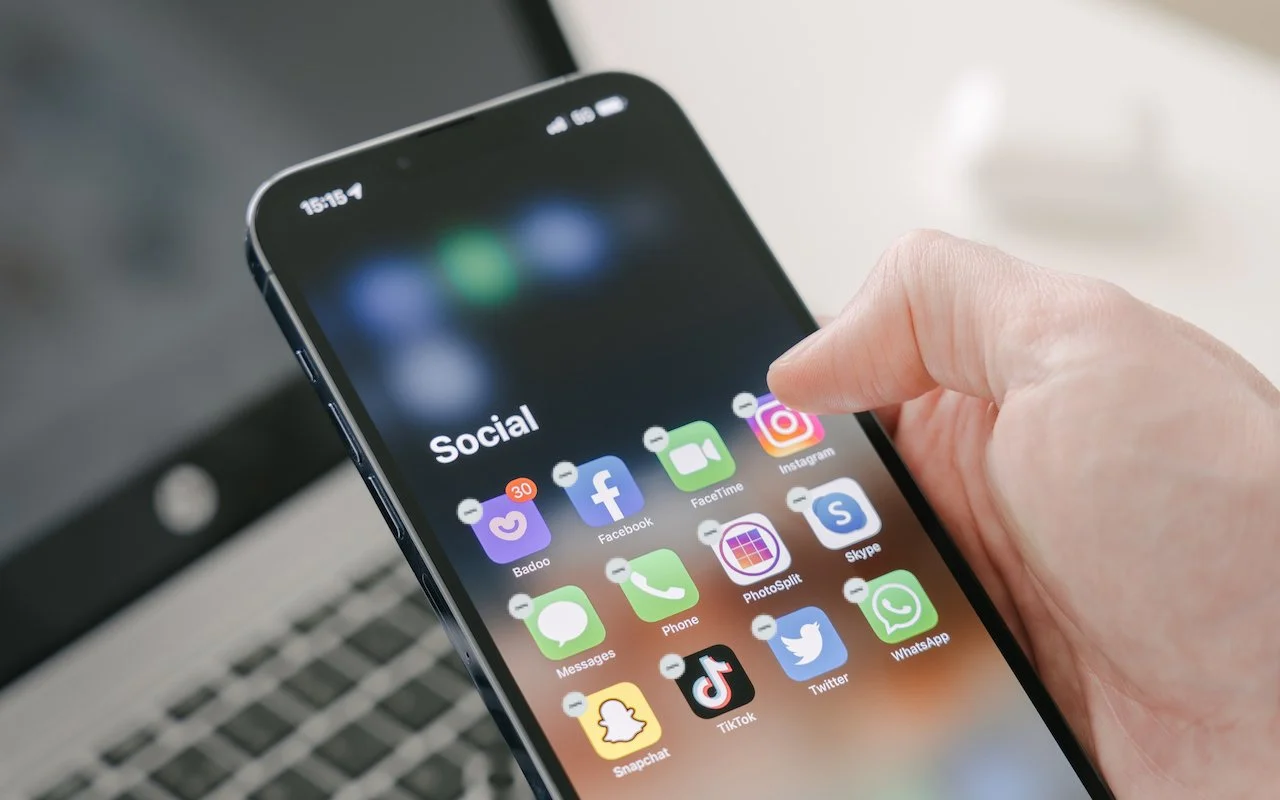
There are many reasons you might want to get rid of apps from your iPhone or iPad. To begin, touch and hold on a blank spot on a Home Screen to enter “jiggle mode.” Then tap the ⊝ icon for any app…
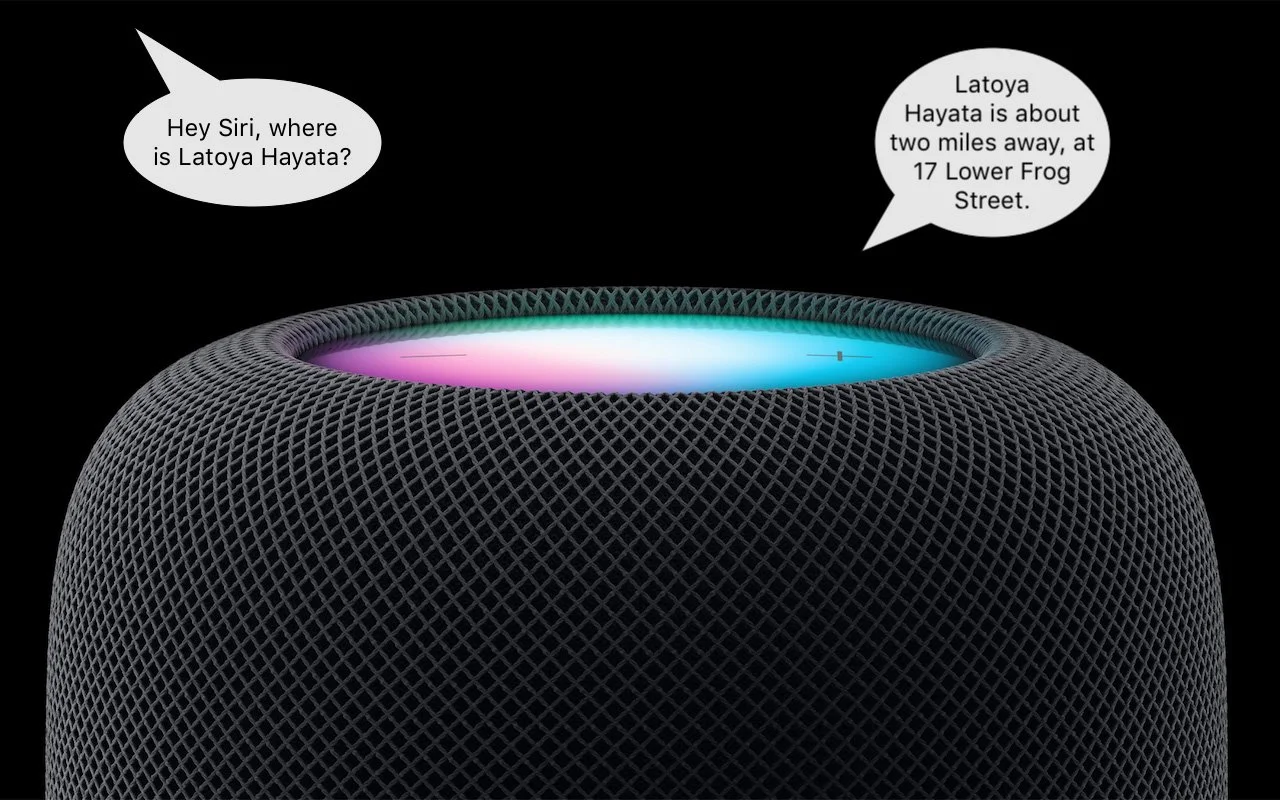
This feature evokes one of those “living in the future” moments for us. The recently released HomePod Software 16.3 now supports Find My, which means you can ask Siri to locate one of your devices or a friend or family member who shares their loca-tion with you. If you have a HomePod, ask Siri, “Where is my iPhone?” Assuming your HomePod has updated (and if not, update it manually in the Home app), Siri will respond by causing your iPhone to play a sound. Or ask where someone is—Siri will respond with more details for nearby people and city locations for those far away.
When you search using Spotlight on the Mac, it provides a decent amount of information about each result, including name and other metadata. But what if you want to see what’s behind the search…
Six Ways of Making It Easier to Browse Your Favorite Websites Everyone—or at least everyone reading this article—knows how to use a Web browser. But just because you can click links, search for websites, and type URLs doesn’t mean that you’re surfing the Web as smoothly and effectively as you could. We all have sites that we visit regularly—a local newspaper, perhaps, or a social me-dia service that’s the only place to connect with far-flung family members. Plus, the rise of Web apps like Google Docs means that we may spend hours every day in a Web browser at a particular site. Here then are six ways that you can make it easier to use the same sites every day. This list is far from comprehensive, but we hope it gets you thinking about how you can spend less time typing URLs and searching for sites. We’ll focus on Safari here, but similar features are available in most Web browsers. Bookmarks Many of you probably know about bookmarks, so let this serve as a nudge to re-member how useful they can be. Dating from the earliest days of the Web browser, bookmarks are the original way to simplify revisiting a site. In Safari on the Mac, save a bookmark by navigating to a page and then choosing Bookmarks > Add Bookmark. See your full list in the sidebar by choosing Book-marks > Show Bookmarks. Click one in the list to load it. On an iPhone or iPad, tap the share icon and tap Add Bookmark; on the iPad, you can also drag a tab to the sidebar when it’s displaying bookmarks. You can see and visit your bookmarks by tapping the Bookmark icon in the toolbar (iPhone ) or the sidebar (iPad ). Favorites To make a particular bookmark even easier to access, add it to your Favorites. On the Mac, you can display the Favorites bar underneath the Location bar (View > Show Favorites Bar) and then click bookmarks for quick loading. Create a new favorite by putting a bookmark in the Favorites folder when you create it or by dragging it in lat-er. On the iPhone and iPad, favorites appear when you tap the Location bar, and adding a favorite is as simple as choosing Add Favorite instead of Add Bookmark in the share sheet. As long as you have Safari enabled in your iCloud settings, your bookmarks and fa-vorites sync among all your Apple devices. Home Screen Icons Want to go one step further? You can turn a Web page into a Home Screen icon on the iPhone or iPad. To set this up, just as with a bookmark, you navigate to the page and tap the share icon. Then select Add to Home Screen. The Mac doesn’t have the same concept of Home Screen icons, but if you drag the URL for a Web page from the Location bar to your Mac’s Desktop, it will turn into a Web Internet Location file with a .webloc extension. It’s a normal file that you could put in the Dock, a Finder window’s toolbar, or anywhere else you want. Open it to load its page. Bookmark Folders Bookmarks and favorites are great for a site or two, but what if you want to open the same handful of sites every morning to get your daily dose of news and comics? Put all those sites in the same folder in the Favorites folder, either by adding them to the folder when you create them or by dragging them in afterward. Once you have collected the desired bookmarks, you can open them all in new tabs by clicking the folder on the Favorites bar and choosing Open in New Tabs (or just Command-click it). If you don’t want it on your Favorites bar, the folder can live an-ywhere in your bookmarks—just Control-click it and choose Open in New Tabs. This feature is available on the iPhone and iPad as well. Once the folder is in your Favorites, tap the Location bar and then touch and hold the folder. Choose Open in New Tabs from the menu that appears. Tab Groups Web browser makers were apparently unsatisfied with letting users open all the bookmarks in a folder in new tabs because they have come up with a similar feature called tab groups. Let’s say you’re researching new speakers to buy, and you want to compare options from different companies. Once you have open tabs for all the sites, you can open the sidebar in Safari on the Mac or iPad and use the Add Tab Group icon at the top to create and name a new tab group. From then on, it appears in the sidebar, and when you select it, those tabs load auto-matically, replacing the ones that were there before (which are stored as another group). The feature is also available on the iPhone, where you must tap the tab icon in the toolbar first. Unlike a folder of bookmarks, when you close a tab in a tab group, it disappears, and if you want it back, you have to open it again manually. Pinned Tabs Perhaps you have several sites that are so important to you that you want them open at all times. For such situations, you can pin tabs to those sites. The utility of pinned tabs is that they stay in place even when you open a new window or quit and reopen Safari. Plus, if you click a link to a different website in a pinned tab, it opens in a new tab—pinned tabs always show the website you pinned. On the iPhone, where there’s no tab bar, pinned tabs live at the top of the tab screen. Each tab group can have its own pinned tabs. To pin a tab in Safari on the Mac or iPad, drag an open tab all the way to the left in the tab bar until it shrinks into a tiny box showing only the site’s favicon. Or, on the Mac, Control-click the tab and choose Pin Tab (shown below). On the iPad, touch and hold the tab and select Pin Tab. To pin a tab on the iPhone, tap the tab icon first and then touch and hold a tab and select Pin Tab. So there you have it! None of these features are particularly new, but they’re easily overlooked, and from what we’ve seen while watching people browse the Web, lots of people could benefit from them. (Featured image by Adam Engst) Social Media: Open your favorite websites faster with bookmarks, favorites, Home Screen icons, bookmark folders, tab groups, and pinned tabs. Get the de
In iOS 16, Apple tightened security by displaying a confirmation alert when you copy data from one app and paste it into another. More security isn’t bad, but these alerts can become annoying if…
1 min read
Have an IT question we haven't covered?
In a free 30-minute call, tell us about your devices and your team, and we'll outline the next step.