
iPhone and iPad tips
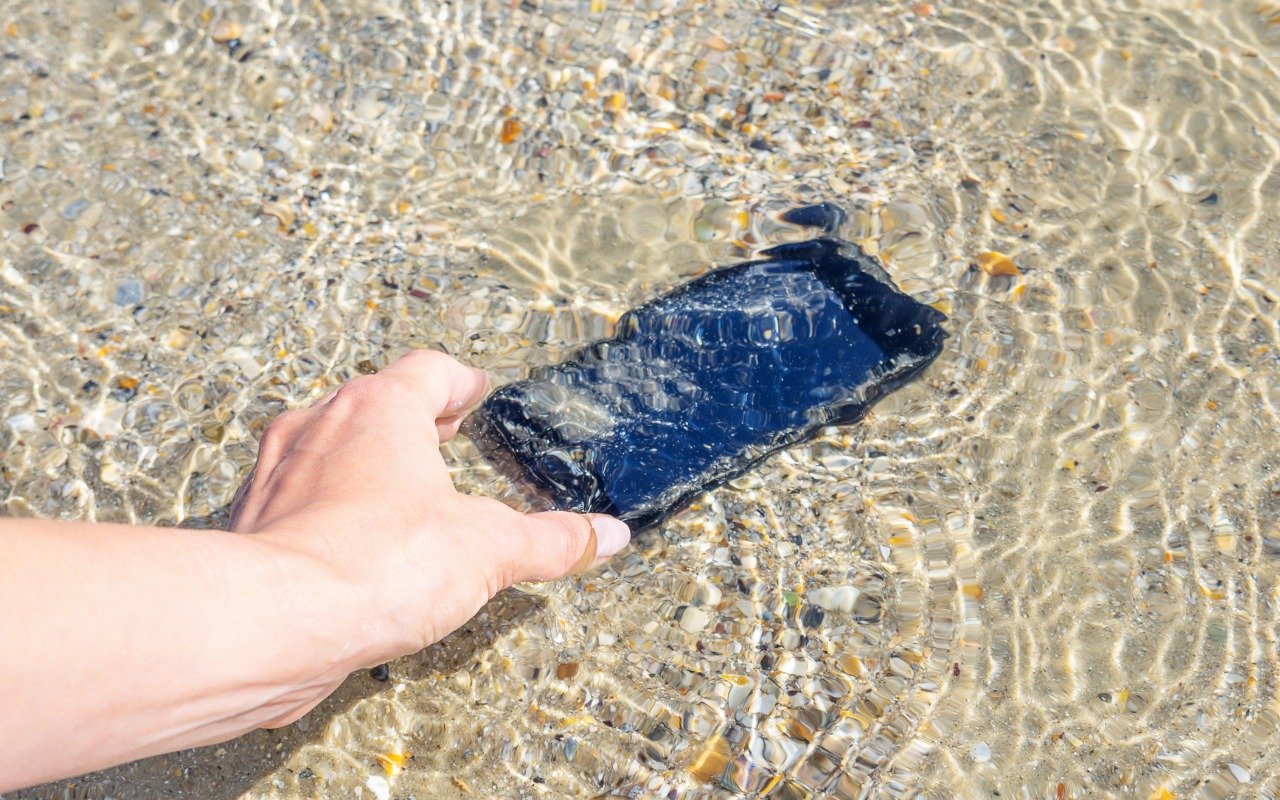
What to Do If Your iPhone Takes a Plunge
Although iPhones can usually withstand some exposure to water and other liquids with no ill effects, follow our advice if yours suffers a spill or takes a dip.
Practical tips for getting more out of iPhone and iPad at work, from Messages and Mail to battery life and settings.
iPhone and iPad tips
Although iPhones can usually withstand some exposure to water and other liquids with no ill effects, follow our advice if yours suffers a spill or takes a dip.

iPhone and iPad tips
Answers to common Messages questions: blue vs. green bubbles, messages that won’t send, syncing across devices, and how to work around problems.
iPhone and iPad tips
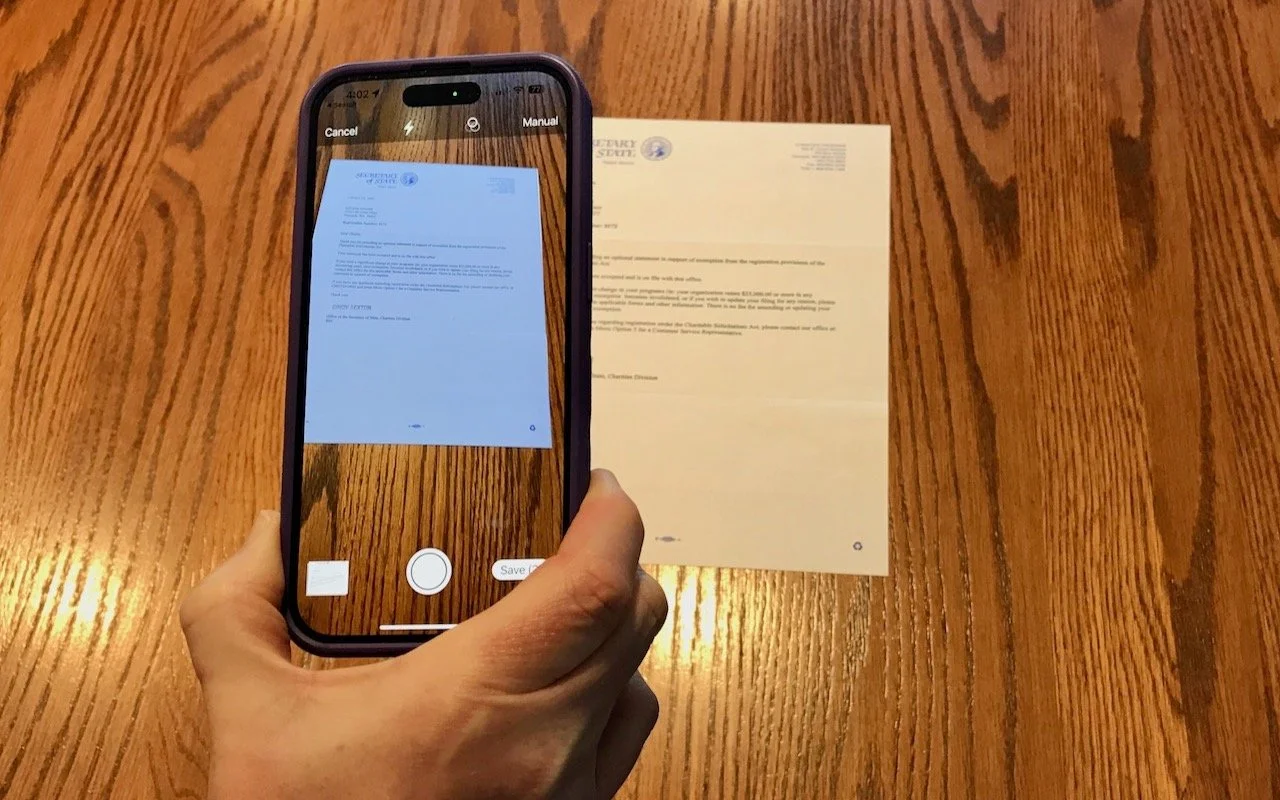
No scanner needed: scan paper documents to PDF with the Files or Notes app on your iPhone or iPad, or from your Mac with Continuity Camera.

iPhone and iPad tips
If you’ve ever tried to use Face ID to unlock an iPhone while lying on your side in bed, you may have noticed that it didn’t work. That’s because Face ID used to require that the iPhone be upright,…

iPhone and iPad tips
Apple has long provided a microphone button in the keyboard to invoke dictation on the iPhone and iPad. But, it wasn’t always easy to hit, and you had to switch back to the keyboard to fix the…

iPhone and iPad tips
How to Share a Contact Card without Sharing Everything in iOS 16 Apple makes it easy to share contact cards on the iPhone or iPad—just scroll down in a contact and tap Share Contact. But what if you don’t want to share every piece of data on that card? To avoid oversharing in iOS 16 or iPadOS 16, tap Filter Fields at the top of the Share sheet and deselect the private items. If the card has a lot of data and you want to share only a few items, tap Deselect All Fields at the bottom of the sheet and select only what you want to share. Unfortunately, your selections aren’t remembered if you share the same card again later, so be sure to reset your selections each time you share.
iPhone and iPad tips
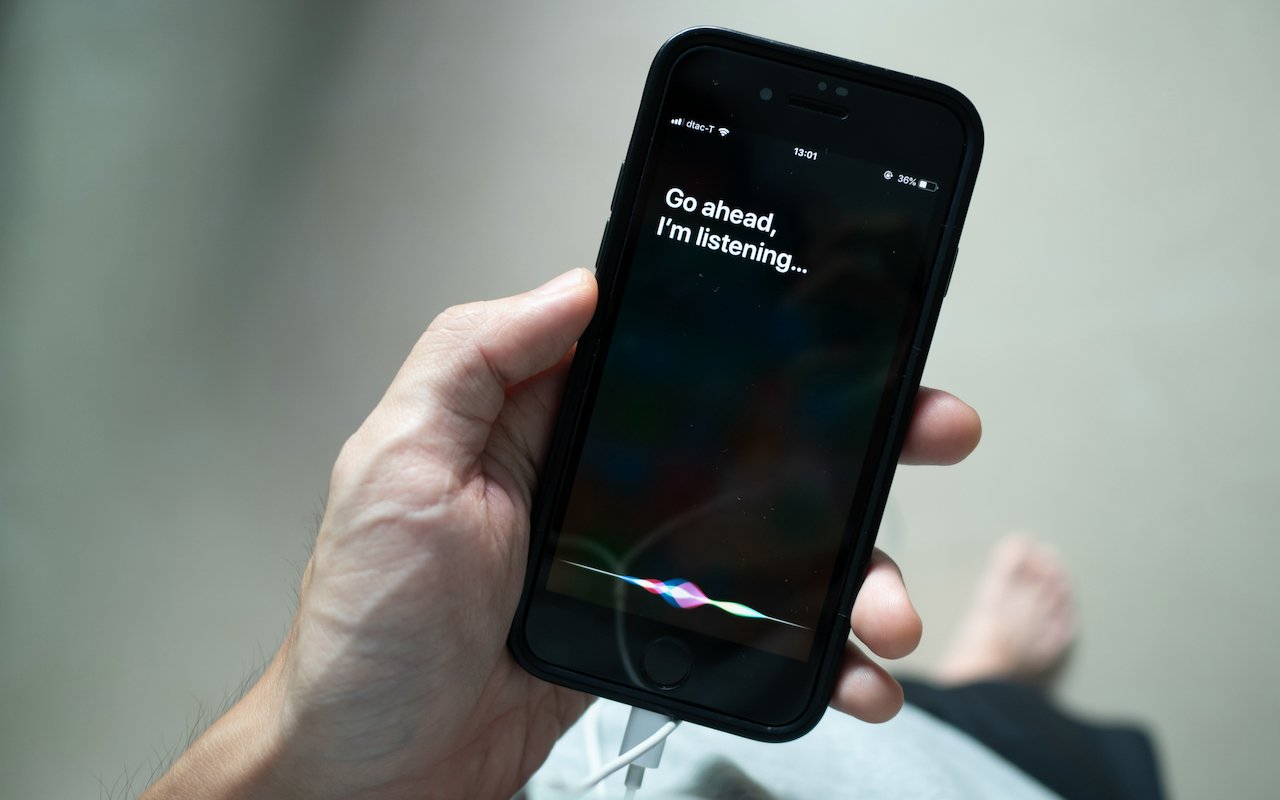
Since iOS 16 and iPadOS 16, you can restart an iPhone or iPad by asking Siri to “Reboot” or “Restart this device.”

iPhone and iPad tips
Plagued by duplicate photos and videos? If you’re running iOS 16, iPadOS 16, or macOS 13 Ventura, you can use the new duplicate finding and merging capability in Photos to clean up your library.

iPhone and iPad tips
Deleting contacts on the iPhone and iPad used to be a pain, especially if you wanted to trash multiple contacts. You had to open the contact, tap Edit, scroll to the bottom, and tap Delete Contact.…
iPhone and iPad tips
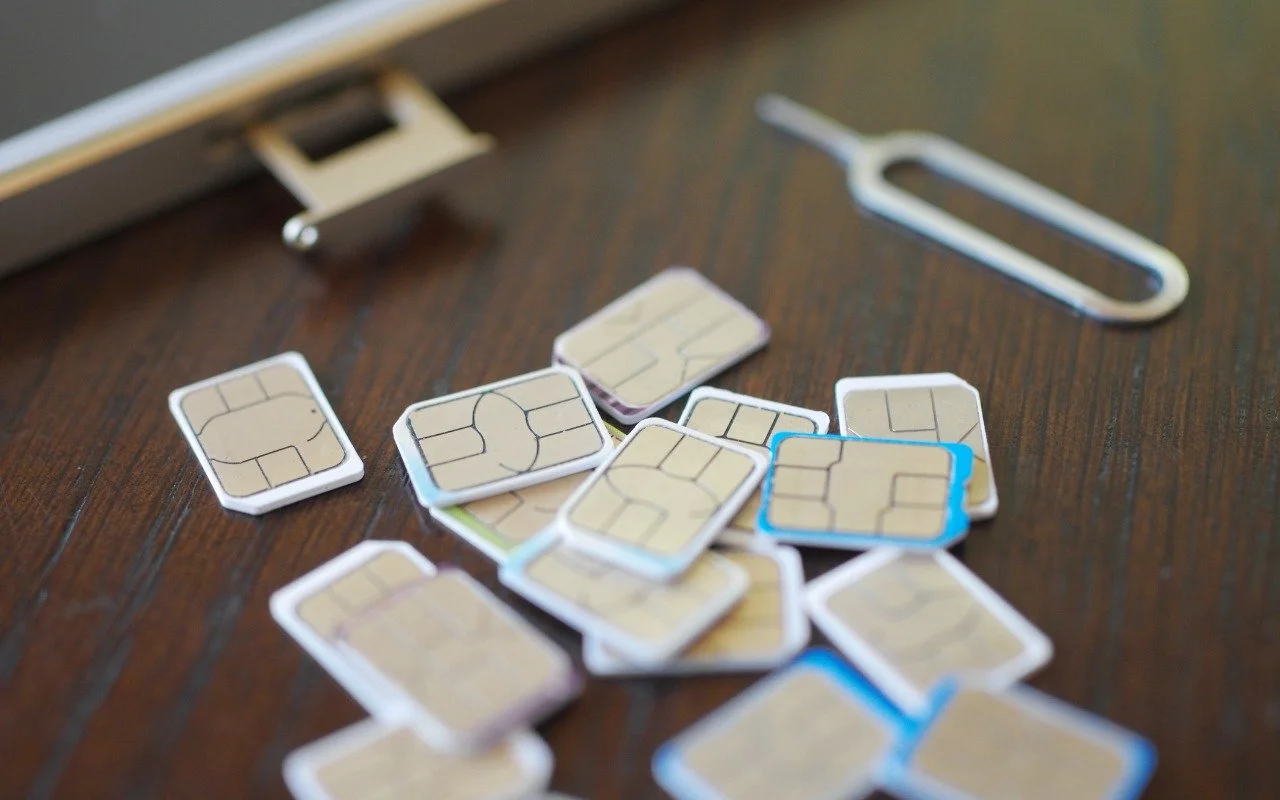
Apple has gone all-in on eSIM, eliminating the SIM tray from iPhone 14 models sold in the US. What’s eSIM? Glad you asked—read on for the details of the technology and why it’s better than SIM cards.

iPhone and iPad tips
Next time you’re flying to visit your Apple-using family or friends, send them your flight number using Messages when you leave. Then they can easily track your flight in the air and see when you’re arriving. Just text them the flight number prefixed with the airline’s abbreviation, like AA for American Airlines, AC for Air Canada, BA for British Air, DL for Delta, or UA for United Airlines. If Messages recognizes the flight number, it will underline it to indicate that tapping or clicking will bring up the cur-rent flight information. This feature also helps you extract more information from a texted flight status update that an airline sends to you. If you know a flight number but don’t have it in Messages, you can get the same information on the Mac using Spotlight (press Command-Space). On an iPhone or iPad, use the Search feature (pull down on the Home screen).

iPhone and iPad tips
Checked in the whole family? Add every boarding pass to Wallet, then send each person theirs with AirDrop or Messages.
In a free 30-minute call, tell us about your devices and your team, and we'll outline the next step.